• Home
  • Support Home
  • Payment Options

PAYMENT OPTIONS

Prepaid customers, view refill options.

QUICK PAY

Make an immediate, anonymous payment.

Quick Pay

MY ACCOUNT

Login and make a payment from My Account.

Pay with My Account

Set Up Auto Pay

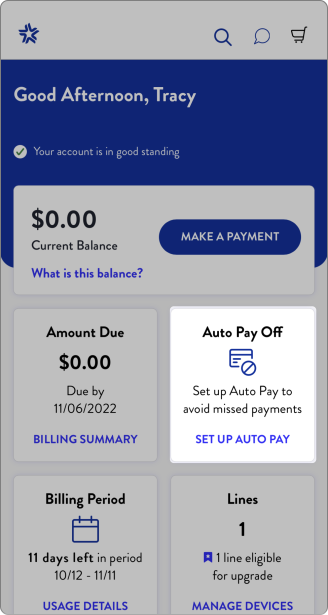
dashbord

  • 1. Log into My Account login icon
  • 2. Click Set Up Auto Pay

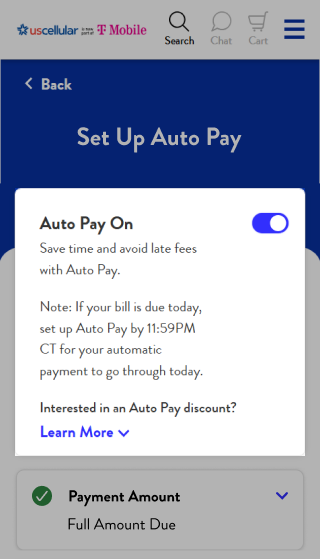
  • 3. Toggle Auto Pay On
  • 4. Add a Payment Amount, Source, & Pay Date
  • 5. Click Finish

Edit Auto PAy

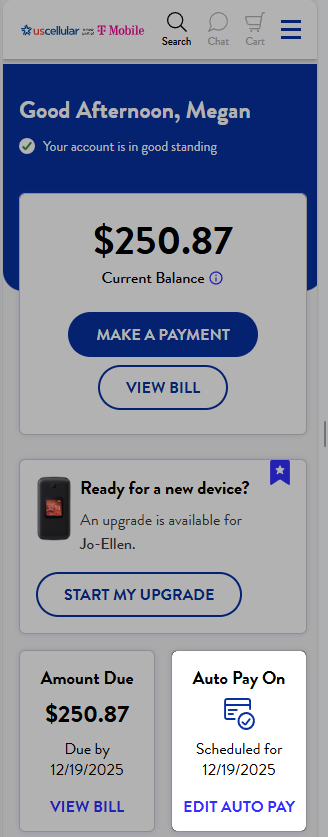
  • 1. Log into My Account login icon
  • 2. Click Edit Auto Pay

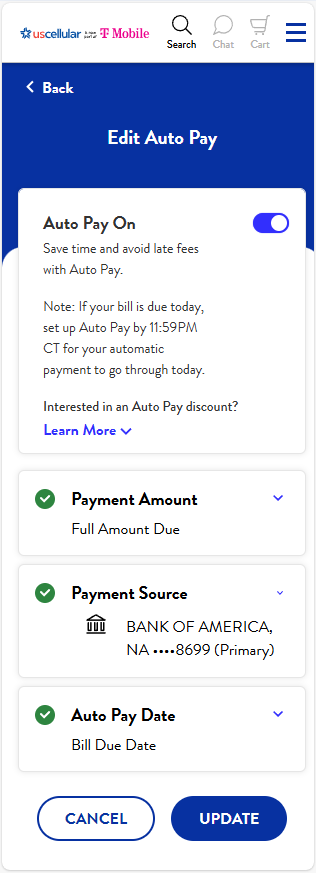
Edit Set Autopay Instruction Image

  • 3. Payment Amount is set to “Full Amount Due” by default (this is a required setting)
  • 4. Expand the Payment Source section to see your options
  • 5. Select Edit Payment Source or Add a Payment Source (note: only debit cards or bank accounts qualify for auto pay discount)
  • 6. Update or Add Payment Source Information, if needed
  • 7. Auto Pay Date is set to “Bill Due Date” by default (this is a required setting)
  • 8. Click the “UPDATE” button to finish

Payment Options

  • The easiest way to pay your bill is through the UScellular® My Account app. You'll see all your account details and can pay via a stored payment method. Or you can use our Quick Pay option, with no login or PIN required. See our Payment Methods page to see all the options.
  • Sign up for automatic payments through My Account and never worry about paying your bill on time again.
    1. Log in to My Account and click Set Up Auto Pay on the dashboard.
    2. Select Payment Amount and choose the amount you’d like to pay.
    3. Under Payment Source, add or select a debit/credit card or bank account.
    4. Save your changes by clicking Update.

    Note: To qualify for the Auto Pay discount for the current billing cycle, the account balance must be paid in full by the original due date and enrolled for both Paperless Billing and Auto Pay using a checking account or debit card only.
  • Open the Bills & Payments menu and select Payment Options.
    On this page you can:
    • Add a new payment source (debit/credit card or bank account)
    • Edit an expiration date
    • Remove a payment source
    • Designate a primary payment source

Pay Off Your Phone Balance

  • Yes, you can pay off your installment balance at any time. You can even make one or multiple installment payments in advance. Just make sure there are no pending orders/requests being processed and your account is current with no outstanding payments.

    Log in to My Account and under the Account menu, select Devices & Plans. On the Devices page, you'll see the progression of your installment plan and how many payments you have left on the device. Click on "Manage Installment Plan". You'll see options to either make a partial payment or pay off the device in full.
  • Log in to My Account and under the Account menu, select Devices & Plans. On the Devices page, you'll see sections for devices or accessories that are under installment payment plans. You'll see the progression of your installment plan and how many payments you have left on the device. If you're close to being eligible for an upgrade, you can get details on when and how to qualify for early upgrade.

RELATED TOPICS

  • Billing
  • Prepaid Refill Options

STILL HAVE QUESTIONS?

Contact Us